 Measura: Sell by Weight & More
How to scan price-embedded barcodes in Shopify POS with Measura
Configure price-embedded barcode formats in Measura, match label codes to Shopify products, and use the encoded total in Shopify POS.
Updated
Measura’s Price embedded barcode add-on lets Shopify POS read a product code and total price from a supported barcode. This is useful for pre-weighed meat, deli items, and other measured products whose package labels already carry a selling price.
The label identifies the product and the amount to charge. Staff can scan it through Measura instead of entering that total manually. Your product setup, barcode format, and scanner output still need to agree.
We’ll use Beef Steak at $24/kg, with SKU 10010003 and barcode lookup code 10003. Its example package total is $13.20. The settings screenshot shows this example’s saved format; the amounts below explain how it is interpreted.
Prepare the product and add-on
In Shopify Admin, open Measura → Add-ons → Price embedded barcode. The add-on must be active to use embedded values in POS. It is billed separately from the main Measura plan; review the add-on’s current pricing and requirements.
Configure the product for measured selling, including its base measurement and price. Our example uses 1 kg as the base and $24 as the product price. Check its availability at the POS location.
The product code extracted from the label must match the intended Shopify variant’s SKU or barcode. Our label has room for a five-digit product code, so the Beef Steak variant uses 10003 in Shopify’s barcode field while keeping SKU 10010003. This short code identifies the product; the full package label also contains its changing price and check digit. Preserve leading zeros when your identifiers have them, and avoid assigning the same code to unrelated variants.
Add the Add Measura products tile to your Shopify POS smart grid; its configured title may appear as Add Measura product. The Measura POS setup guide covers product configuration and the selling tile.
Use a 13-digit EAN-13 price label
EAN-13 has 13 digits and UPC-A has 12. For this guide, we’ll use an EAN-13 price label with a valid check digit. An ordinary product-identification barcode does not automatically contain a price; your label system must encode that information.
Start with a sample label from the scale or label software your shop uses. Identify which characters contain the product code, the price, any fixed prefix, and any check or ignored digits. Confirm the exact text your scanner sends as well as the human-readable text printed on the label.
For our EAN-13 worked example, the value is:
2910003013205
Read it as four consecutive fields:
- 29: the fixed prefix chosen for this example.
- 10003: the product code matching the Beef Steak variant’s barcode field.
- 01320: the package price, interpreted as $13.20 with two money decimals.
- 5: the EAN-13 check digit, calculated from the preceding twelve digits.
The breakdown is 2 prefix digits + 5 product-code digits + 5 price digits + 1 check digit = 13 digits. The prefix and field positions are the example’s label layout, not a universal rule for every EAN-13 or UPC-A barcode. Match Measura to your scale or label printer’s actual output and numbering scheme.
Configure the price format in Measura
Under Custom barcode formats, choose Add format or Add another format, then set:
- Value type: Price.
- Format:
29pppppmmmmmc. - Money decimals: 2.
The literal 29 must match the first two characters. Each p reads one product-code character, so five p characters read 10003. Each m reads a money digit, so five m characters read 01320. With two decimals, that becomes 13.20 in the store’s currency. The final c validates the label’s check digit.
Replace 29 with the fixed prefix used by your labels. If those first two characters should be ignored, xxpppppmmmmmc reads the same field positions without checking the prefix. Use that broader mask only when the different prefixes really share the same layout: it can also interpret unrelated labels as price labels. A known fixed prefix makes the match more specific.
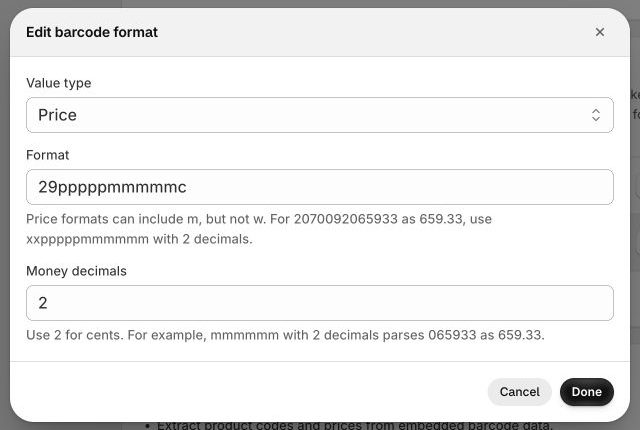
Choose Done, then Save the add-on settings. Close and reopen the Measura POS tile after changing the format so it can refresh its configuration.
For this EAN-13 layout, keep the final c so the check digit is validated rather than read as part of the price. Measura also supports x for genuinely ignored characters in other layouts. A price-only format uses money fields; labels containing an explicit measured amount use Measurement or Price and measurement instead.
Preserve formats used by your other labels. Custom product-label formats are checked in their saved order, so put more specific overlapping formats before broader ones and test representative labels after a change.
Choose whether scans add directly to the cart
The add-on includes Add to cart automatically:
- Enabled: a valid, unambiguous embedded result can add the item directly to the POS cart.
- Disabled: Measura opens the product editor for confirmation before adding.
With the Measura tile open, scan the package label using your supported scanner or the Scan barcode control. If several variants match the product code, choose the correct variant. Check its name and SKU before accepting the result.
Inspect the product, measured amount, and price in the editor or cart. Invalid configuration or an unusable measurement can require review instead of an automatic add. Run a representative test before relying on automatic additions at a busy counter.
Understand the encoded total and calculated weight
For a price-only label, the encoded value is the package total. It does not replace the product’s configured price per kilogram.
Our label carries $13.20. At the configured $24/kg rate, the corresponding measurement is:
$13.20 ÷ $24/kg = 0.55 kg
Measura derives the measurement from the encoded total and the matched variant’s price and base measurement, using the configured measurement precision. The encoded total remains authoritative for the price entry. Taxes, discounts, and other checkout adjustments can affect the final amount due.
That makes the product’s current unit price important. If the label was printed at a different rate, a price-only label can produce a different derived weight. Where your label system supplies both an explicit weight and price, configure the matching Price and measurement format so both encoded values can be used.
A price-only label does not independently provide the package’s measured weight or container tare. Check your packaging workflow separately; do not subtract a container again when the label already prices the net product. The tare-presets guide explains reusable empty-container weights for manual weighing.
Other barcode workflows in the same add-on
The Price embedded barcode add-on also supports Measurement, Price and measurement, and Tare formats. A measurement label supplies the measured amount for pricing; a combined label supplies both values; a tare label applies the empty-container weight before weighing the product. This guide focuses on labels carrying the package total.
If your label contains weight rather than a total, follow the weight-embedded barcode guide for product matching, units, decimals, and price calculation.
For labels encoding an empty container’s weight, use the tare-barcode guide to apply the deduction before reviewing gross and net weight.
Troubleshoot a missing product or wrong amount
If the product does not match, compare the decoded product-code characters with the exact Shopify SKU or barcode. Check leading zeros, field lengths, product configuration, and POS location availability. Do not replace the variant’s stable SKU with every changing package-price label.
If the amount is wrong, compare the full scanned value with the saved format, including its final check digit. A misplaced field or incorrect money-decimal setting can change the result substantially. For our example, 01320 with two decimals is 13.20; with three decimals it is 1.320.
If an ordinary barcode is being treated unexpectedly, check whether a custom format matches its prefix and length. Use formats specific to your actual label layouts and review other saved formats before changing them.
Finally, verify that the add-on is active and reopen the tile after saving changes. If you need help, contact Atomic POS support with the sample barcode value, intended product, expected price, and your saved format, excluding customer or order details.
For weighing at the counter, follow the butcher-shop POS guide. If an order needs a final weight correction after creation, use the separate catch-weight order-editing workflow.