 Measura: Sell by Weight & More
Shopify POS for butcher shops: sell by weight and handle catch-weight orders
Use Measura in Shopify POS to price meat by weight, subtract packaging tare, track fractional stock, and correct catch-weight orders with the Order edit add-on.
Updated
Butcher shops can use Measura to sell meat by weight in Shopify POS and correct catch-weight orders after preparation with the optional Order edit add-on. At the counter, staff enter the weight of the cut and Measura calculates its price. For an advance order, staff can update an eligible measured item to the actual weight once it has been prepared.
The distinction is when you know the final weight. A customer choosing steaks at the counter can pay for the measured amount immediately. A customer ordering approximately 1 kg for collection may receive a cut that weighs 1.08 kg. Your team needs a clear process for both.
This guide follows those two workflows using beef priced at $24/kg. All weights and dollar amounts are worked examples in the store’s currency, before taxes, discounts, delivery fees, or other adjustments. They are not results from a butcher shop trial.
Set up a product with a clear price per kilogram
In Measura, assign the product to a weight-based product group and configure its base measurement. For our example, set the base measurement to 1 kg and the product price to $24. That gives a selling price of $24/kg.
Keep the base measurement and product price aligned. A price of $2.40 for a base measurement of 100 g also represents $24/kg, but entering $24 against 100 g would price a very different amount.
Add the Add Measura products tile to the Shopify POS smart grid and check that staff can find the product at their location. You can use Measura for POS alone, or configure both POS and online selling. An online store is not required for the counter workflow.
The Shopify POS setup guide covers the tile, product selection, cart editing, and a recorded demonstration. Check Measura’s current plans for your POS locations and inventory requirements.
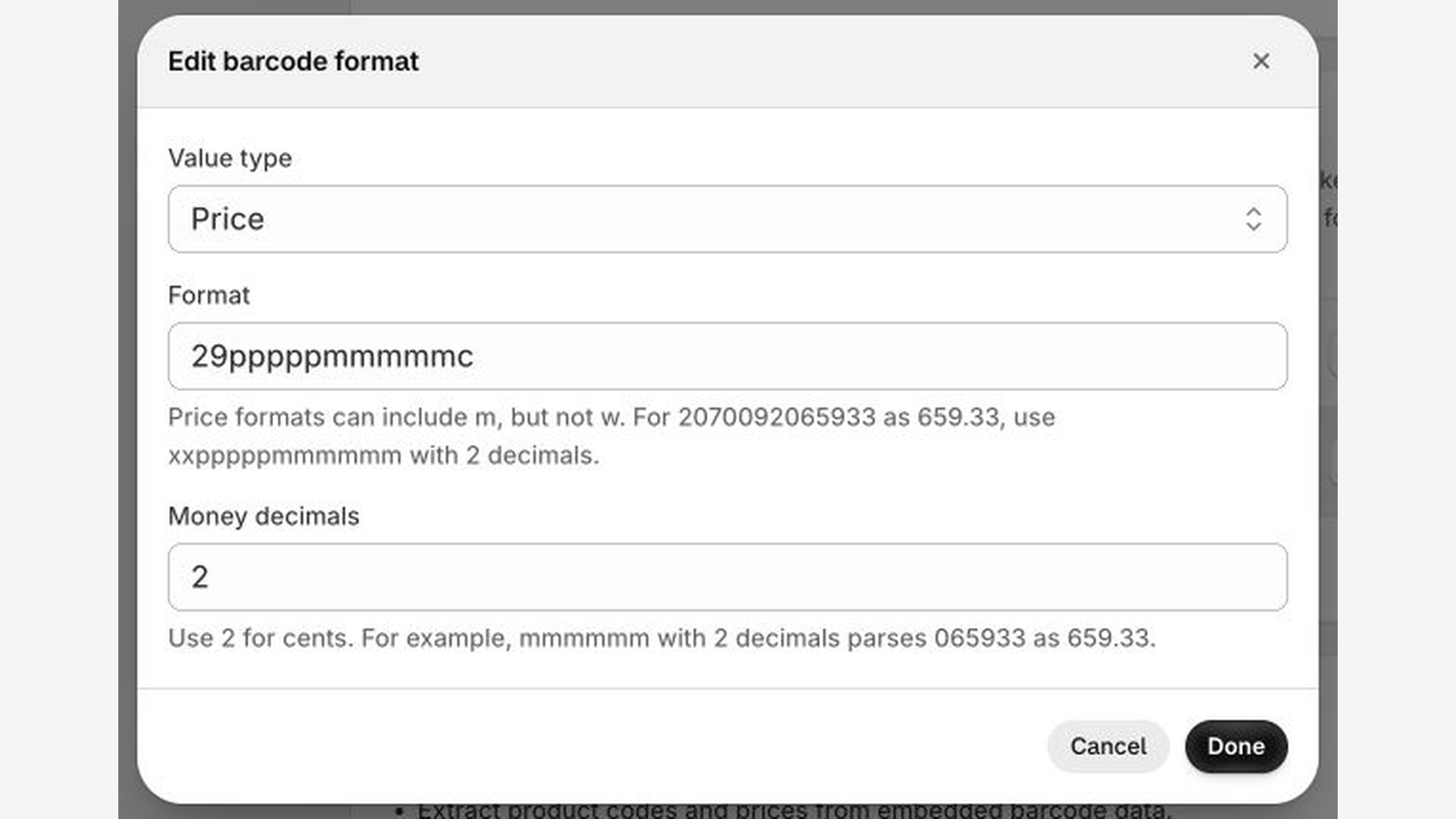
If your scale prints package labels with the selling price, follow the price-embedded barcode guide to configure the label format, match the product code, and review the encoded total in POS.
At the counter: weigh the cut and subtract packaging
Suppose a customer chooses a portion of beef. The meat and tray weigh 0.58 kg, and the empty tray weighs 0.03 kg. The meat’s net weight is:
0.58 kg gross − 0.03 kg tare = 0.55 kg of meat
Open the product in Measura, enter the gross weight, and use the tare control to account for the tray. Check the units and the resulting net weight. At $24/kg, the item amount is:
0.55 kg × $24/kg = $13.20
If your scale has already subtracted the tray and displays the net meat weight, enter that net value without subtracting the same tare again. The goal is to charge for 0.55 kg of meat in this example, whichever weighing process your team uses.
For trays you use regularly, save a named tare preset in Measura and select it in the POS Tare tab. Check that the saved weight matches the actual tray and any packaging included on the scale.
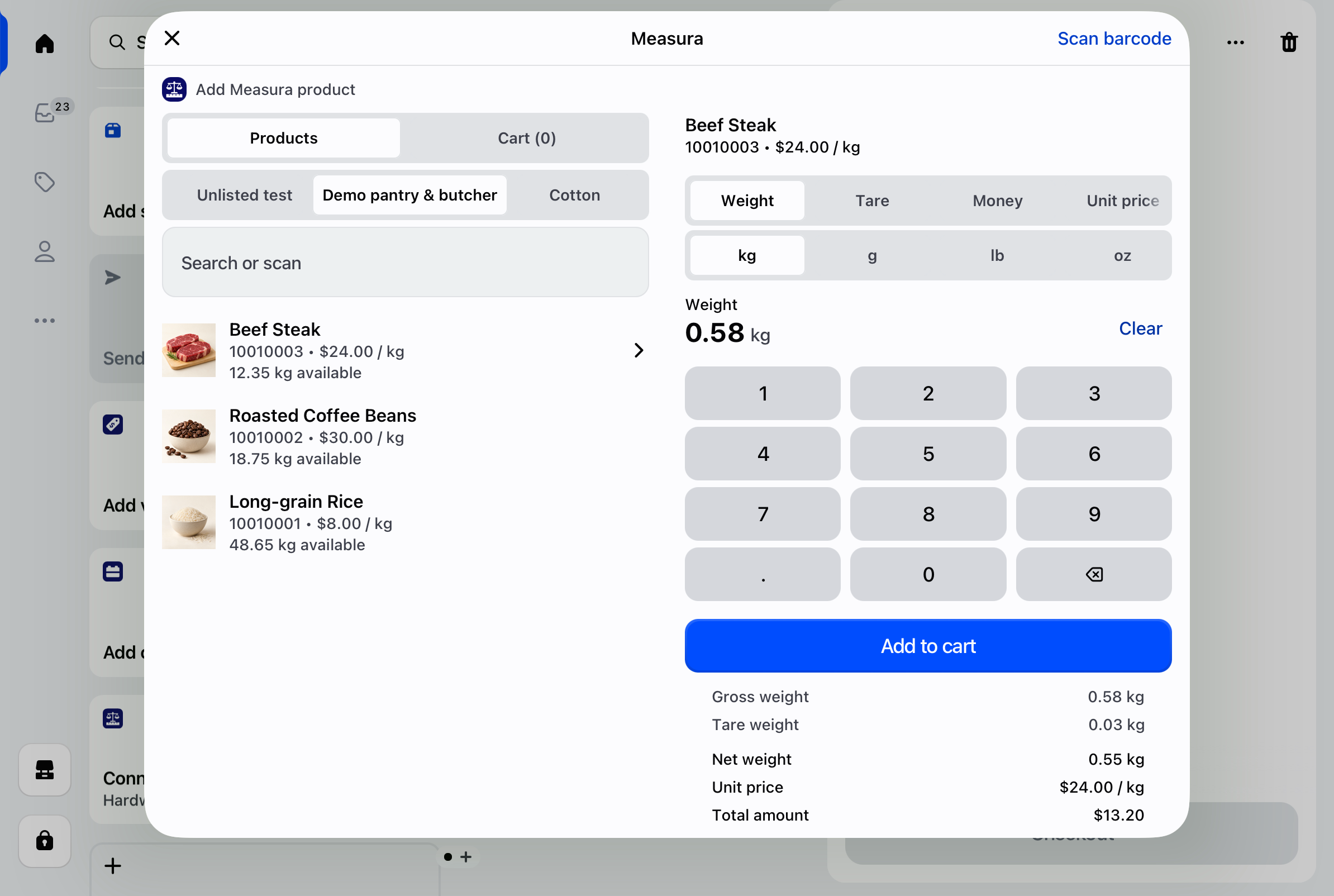
Review the calculated amount, choose Add to cart, and check the item in Shopify POS before completing checkout. For this counter sale, the final weight is known before the order exists, so an after-order weight correction is unnecessary.
Manual weight entry works without a connected scale integration: weigh the product on your scale and type the result into Measura. If you want automatic readings, review the separate Scale integration add-on and its hardware and ScaleBridge requirements.
Advance orders: change the estimate to the actual weight
A customer orders approximately 1 kg of beef at $24/kg for collection. The initial item amount is $24.00. When staff prepare the cut, its final net weight is 1.08 kg.
Once that Measura measured order exists, use the optional Order edit add-on to correct the measured item:
- Open the order in Measura’s Orders workspace, or use the Measura Edit order action on the Shopify Admin order page.
- Select the measured beef item and confirm the selling unit and unit price.
- Change its measurement from 1.00 kg to 1.08 kg. This example uses line quantity one; check quantity separately if the line contains multiple units.
- Review the recalculated item amount of $25.92, then save.
- Check the saved order, its balance, and the inventory result at the intended location.
The calculation is 1.08 kg × $24/kg. The item amount increases by $1.92 before other adjustments. A smaller cut would reduce the amount instead.
The Order edit add-on must be active and is billed separately from the main plan. Editing applies to eligible Measura measured items, with the required permissions; it does not make every ordinary Shopify order line editable by weight. Measura also provides order editing in Shopify POS through its available order actions.
Review payment after saving the final weight
Saving the weight correction does not automatically collect an additional payment or issue a refund. Review the updated Shopify balance and complete the appropriate payment or refund step for that order.
If the customer already paid the $24.00 estimate, the extra $1.92 in our example needs payment follow-up, subject to the final order balance. Explain your estimated-weight and final-price process before the customer places the order, so they know what to expect at collection.
Check fulfillment status before correcting an order
Eligible fulfilled measured items can also be corrected, but the process differs from an unfulfilled edit. After confirmation, Measura records returns and replacement items within the existing customer order. The original fulfilled line is not simply overwritten.
Where practical, finalize the weight before fulfilling the order. For the full workflow and fulfilled-item behavior, read the catch-weight order editing guide.
Track the kilograms remaining at each location
A butcher needs to see the amount of measured stock left, not just the number of customer orders. With inventory management enabled on an eligible Measura plan and the product configured correctly, fractional stock represents amounts such as 19.45 kg.
For example, starting with 20 kg of the configured beef product and completing the 0.55 kg counter sale leaves 19.45 kg in this simplified stock example. Check the result after order processing, using the location where the sale took place.
For an advance order whose measurement changes, verify the resulting stock adjustment after saving the correction. Review the final balance rather than manually deducting the full corrected weight again: the original order may already have affected stock.
Match your inventory setup to the product and base measurement you actually sell. Recording the sold weight does not by itself describe every stock change in a butcher shop; separately account for preparation losses, waste, and other adjustments in your stock process.
Our fractional inventory guide explains base units, location balances, plan requirements, and how Measura’s decimal quantities relate to Shopify inventory.
Try both workflows before your first busy shift
Start with one measured product and check the complete counter sale: weight entry, packaging tare, calculated price, checkout, stock, and the receipt formats you use. Make sure the customer can understand the weight and price shown on their receipt; follow Measura’s receipt setup instructions where template changes are needed.
Then try an advance order with a different final weight. Check the corrected item amount, order balance, inventory, and the payment follow-up your staff will carry out. Include both an increase and a decrease so the team knows how to handle each.
Explore Measura, review the Order edit add-on, or contact Atomic POS support with your counter and collection-order workflow.