 Measura: Sell by Weight & More
How fractional inventory works in Shopify with Measura
Track stock in kilograms, metres, and other measured units with Measura. Learn how decimal inventory works across Shopify POS and online orders.
Updated
Measura supports fractional inventory for products sold by measurement in Shopify POS and online. With inventory management enabled on an eligible plan, you can track a remaining balance such as 9.65 kg, rather than treating every sale as one whole item.
This matters for coffee, fabric, refills, and other products where the amount sold varies. Selling 350 g of coffee should account for 0.35 kg of stock; selling 2.3 metres of fabric should account for 2.3 metres of that fabric.
See fractional stock in Measura
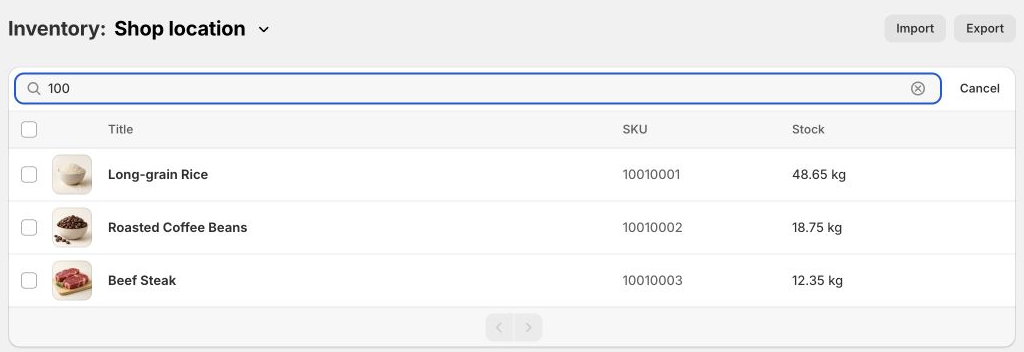
The screenshot below shows the inventory workspace in the Atomic POS development store. The configured demo products have decimal balances of 48.65 kg of rice, 18.75 kg of coffee, and 12.35 kg of beef, with numeric SKUs. The location selector identifies Shop location as the inventory being viewed.
A worked example: 10 kg becomes 9.65 kg
Suppose you have 10 kg of coffee at one location, configured with a base measurement of 1 kg and a price of $30 per kilogram. A customer buys 0.35 kg in Shopify POS.
- Starting measured stock: 10.00 kg.
- Amount sold: 0.35 kg.
- Remaining measured stock after the sale is processed: 9.65 kg.
- Item price before taxes or discounts: $10.50.
The calculations are 10 − 0.35 = 9.65 kg for stock and 0.35 × $30 = $10.50 for price. This is an illustrative calculation, not a recorded transaction or a benchmark. The screenshot above demonstrates the actual inventory interface with different products and balances.
Adding an item to the cart is not the same as completing and processing an order. To verify inventory, finish a representative test sale and check Measura after the order and inventory updates have been processed.
Set up measured stock correctly
1. Choose a plan with inventory management
Measura’s current Pro, Premium, and Enterprise plans include automatic inventory adjustments and fractional stock tracking. Basic supports measured selling but does not include these inventory features. Review the current plan comparison and the subscription details in Measura before choosing a plan.
Inventory history and other advanced inventory tools have their own plan requirements. You do not need the Order edit add-on simply to track fractional stock from ordinary measured sales; that add-on handles changes to existing measured orders.
2. Check the product’s base measurement
Assign the product to the appropriate Measura product group and confirm its measurement type, base amount, and unit. Enable the relevant inventory tracking and adjustment settings for the product and workflow.
The base amount matters. If one stock unit represents 1 kg, then 10 stock units represent 10 kg. If one stock unit represents 100 g, then 10 stock units represent 1 kg. Check the measured stock column and unit instead of assuming that a quantity of 10 always means 10 kg.
3. Select the correct location and enter stock
Open Inventory in Measura, choose the location, and find the product variant. Review its stock in the configured measurement unit. Measura also provides location-specific inventory controls on the product variant page.
Use Measura’s inventory controls when entering a decimal measured balance. Review the unit and the new total before applying a correction. If other software also manages inventory, agree on how those updates will reach Measura before running both systems together.
4. Complete a sale and verify the result
Follow the Shopify POS weighed-sale guide, then check the same variant and location in Measura. For the coffee example, a processed 0.35 kg sale from 10 kg should leave 9.65 kg when there are no other stock movements.
If your plan includes adjustment history, review it alongside the order when investigating a difference. Check the starting stock, quantity, measurement unit, inventory settings, and location before manually changing the balance again.
Why Shopify and Measura can display different numbers
Shopify’s underlying inventory quantity is a whole number. Measura coordinates that quantity with its fractional inventory data to represent the complete measured balance.
For example, with a 1 kg base amount and rounding down, 9.65 kg can be represented by a Shopify quantity of 9 plus a Measura fractional component of 0.65. With rounding up, the same balance can be represented by 10 plus −0.35. Both represent 9.65 kg.
The negative fraction in that second example does not mean the store has negative stock. It is the remainder needed to preserve the exact total with that rounding setting. Use Measura’s combined measured balance to understand the stock available, and check the configured rounding behavior before connecting external inventory software.
Using inventory across POS and online orders
Measura supports measured selling through both channels. For products sold in person and online, confirm that the same intended variants and inventory locations are configured for each workflow.
If both channels draw from the same location, their processed stock movements should affect that location’s measured balance. If they use different locations, check each location separately. Fulfillment and location settings matter; an online order is not necessarily assigned to the location used by your POS device.
Test one order through each channel you actually use. Inventory updates involve order processing, so do not rely on a cart preview as proof that stock has changed or expect every screen to update at exactly the same instant.
What about catch-weight corrections and integrations?
When the supplied measurement changes after an order is created, the optional Order edit add-on can update eligible Measura items and apply the corresponding inventory adjustments for the configured workflow. See the catch-weight guide for fulfilled-item handling and payment follow-up.
For developers, Measura’s fractional inventory API accepts measured adjustments or final stock values for a location. Use that documented interface rather than writing only the Shopify whole-number quantity and assuming the fractional component will also be corrected. Public API access has separate plan and authentication requirements.
Check your inventory workflow before rollout
Start with one variant and one location. Confirm the base measurement, record the starting balance, complete a measured sale, and check the result. Repeat for your online channel if needed, then test the order corrections or returns your team actually uses.
Explore Measura’s plans or contact Atomic POS with your products, measurement units, locations, and any existing inventory integration.