 Measura: Sell by Weight & More
Shopify POS for refill shops: subtract container tare with Measura
Sell refills by weight in Shopify POS with Measura. Subtract empty-container tare, price the net product weight, and check stock and receipts after checkout.
Updated
Refill shops can use Measura in Shopify POS to subtract an empty container’s tare weight and charge for the product inside. Staff enter the filled container’s gross weight and its tare, review the calculated net weight and price, then add the measured item to the cart.
This is useful when customers bring jars, tubs, or bottles and buy a variable amount of a product sold by weight. The same container can hold a different amount each visit, so the sale needs to reflect what the customer actually takes home.
We’ll follow a jar of rice priced at $8/kg. The weights, prices, and stock balances below are worked examples in the store’s currency, before tax, discounts, or other adjustments. They are not a recorded refill-shop transaction.
Set up the refill product and POS tile
In Measura, assign the product to a weight-based product group. Match its price to its base measurement: for our rice example, use 1 kg as the base measurement and $8 as the product price.
If your shelf price is per 100 g, configure the corresponding amount and price consistently. In this example, $0.80 per 100 g represents the same rate as $8/kg. Entering $8 against a 100 g base would price a different amount.
Choose POS in Measura’s setup and add the Add Measura products tile to the Shopify POS smart grid. You can use the app for in-person selling without enabling an online-store measurement selector. Check that your Measura plan covers the POS locations and inventory features you need.
You can weigh the product on your scale and enter the result manually. Automatic readings are a separate workflow; review the Scale integration add-on, compatible hardware, and ScaleBridge requirements if you want to connect a scale.
Weigh the empty container before filling
Tare is the weight of the empty container. For our example, the empty jar weighs 0.18 kg, or 180 g.
Weigh it before filling, and keep that value associated with the correct jar until checkout. If you weigh the filled jar with its lid, include the same lid when measuring the empty jar. Otherwise, the two measurements describe different packaging.
When a customer brings several containers, measure and identify each one separately. Two jars that look similar can have different empty weights. The tare must belong to the container being weighed, rather than the previous customer’s container or another item in the sale.
This walkthrough uses manual tare entry. It does not depend on a customer account, container barcode, or saved-container workflow.
If your shop regularly uses the same jars or tubs, you can save their empty weights as tare presets and select the matching container in POS. Use a preset only when it matches the actual packaging; weigh unfamiliar customer containers individually.
Enter the filled weight and subtract tare in Measura
After filling, suppose the rice and jar weigh 0.83 kg together. That is the gross weight. Open the configured rice product in Measura and enter 0.83 kg as the measured weight. Use the tare control to enter the empty jar’s 0.18 kg.
The net product weight is:
0.83 kg gross − 0.18 kg tare = 0.65 kg of rice
At $8/kg, the calculated item amount is:
0.65 kg × $8/kg = $5.20
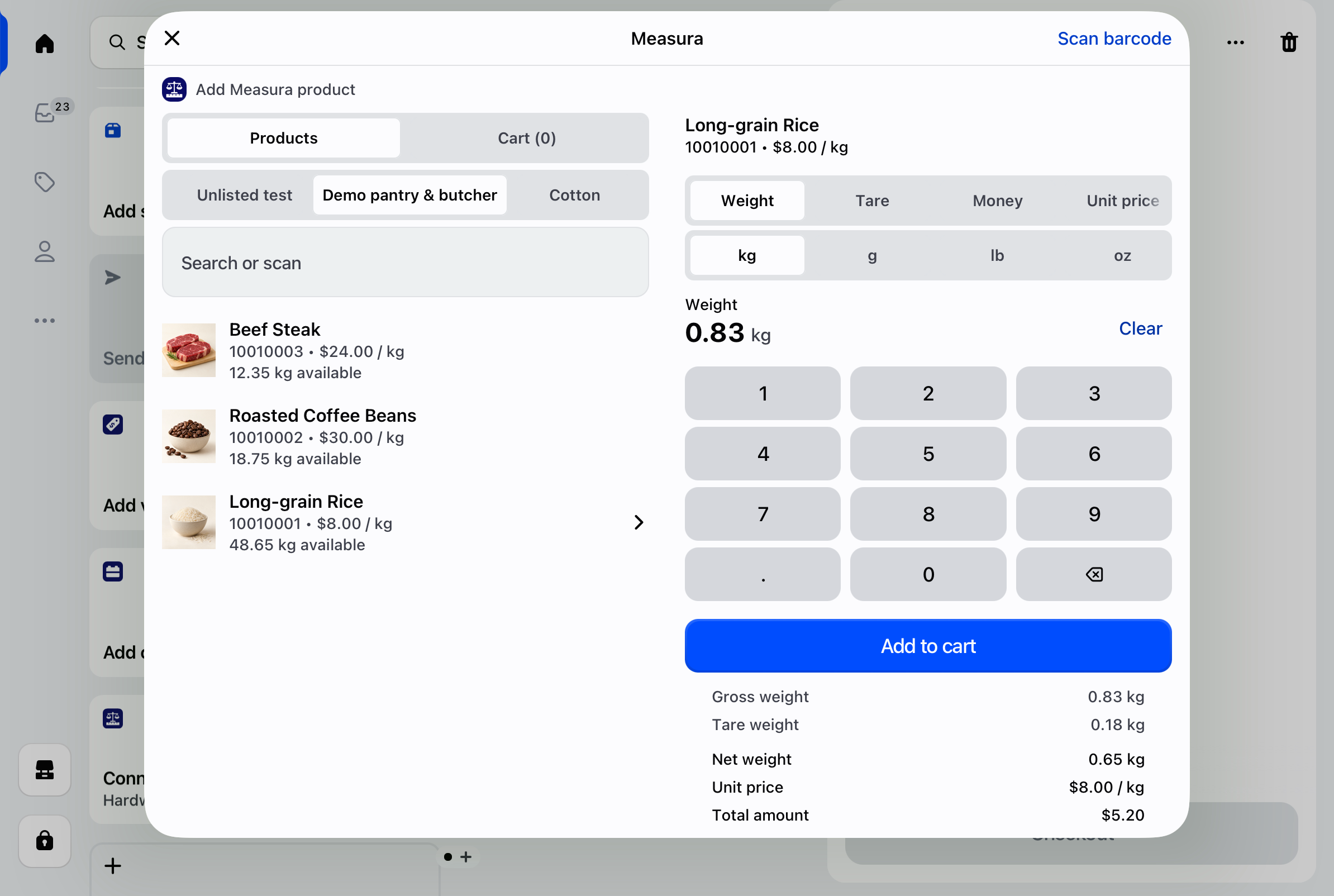
Check the measurement and tare units as well as their values. Entering 180 with kilograms selected is very different from entering 180 grams. Review the displayed gross, tare, net weight, unit price, and amount before choosing Add to cart.
Use weight entry for this workflow. Entering a target money amount is a different calculation; Measura does not subtract tare from the amount-derived measurement in that mode.
If the scale already shows net weight, do not subtract tare again
Some staff workflows use the scale’s tare function before filling. In our example, that would let the scale show 0.65 kg of rice after accounting for the jar.
If you enter that net value into Measura, leave the app’s tare at zero for this entry. Subtracting 0.18 kg again would incorrectly reduce the charged product weight to 0.47 kg.
Choose a consistent process your team understands:
- Gross-weight entry: enter 0.83 kg and subtract 0.18 kg in Measura.
- Net-weight entry: enter the scale’s already-tared 0.65 kg without another tare subtraction.
Both should produce the same 0.65 kg sale and $5.20 item amount in this example. Check what the scale is displaying before entering the number, especially when staff switch between workflows.
Finish checkout and check product stock
Review the product, net amount, and calculated price in the Shopify POS cart, then complete the sale. If you need to correct a measured item before checkout, enable and use the Measura edit item cart action as described in the POS setup guide.
With inventory management enabled on an eligible plan and the product configured correctly, stock should account for the product sold. Starting with 10 kg of rice, our 0.65 kg sale leaves:
10 kg − 0.65 kg = 9.35 kg of rice
This simplified balance assumes no other sales or adjustments. Check Measura after order processing at the intended location; adding an item to the cart alone is not a completed inventory check. The customer’s empty jar weight is not rice stock.
If your shop also sells the container itself or charges a deposit, handle that separately in your selling process. Tare subtraction determines product weight; it does not itself create a container sale or deposit charge.
Read the fractional inventory guide for base measurements, decimal balances, and location setup.
Check receipts and other refill products
Make a small test sale before adopting the workflow across your counter. Inspect the receipt formats you use for a clear product name, net measurement, unit price, and total. Follow Measura’s receipt setup instructions where template changes are needed; email and printed receipts can render differently.
For a second product or container, check the selected variant, unit price, and tare again. Do not carry one jar’s empty weight into another refill without verifying it.
This guide applies to products sold by weight. If you sell a liquid by volume, use the appropriate volume measurement and pricing setup. A weighed kilogram is not automatically a litre for every product, and weight tare is not a volume measurement.
Explore Measura, follow the full POS selling guide, or contact Atomic POS support with the products, containers, and checkout process you want to use.