 Measura: Sell by Weight & More
How to scan container tare barcodes in Shopify POS with Measura
Apply an empty container’s tare from a barcode in Measura, then review gross and net weight in Shopify POS. Configure label fields, decimals, and units.
Updated
Measura’s Price embedded barcode add-on can read a container’s empty weight from a Tare barcode and apply it in Shopify POS. Staff then enter or scan the product’s gross weight and review the net amount to charge.
A tare scan supplies the empty-container weight. It does not identify a product, sell the container, or add a cart line by itself. This guide follows a worked example with a 30 g tray, 0.58 kg gross beef weight, and a $24/kg product rate.
Enable the add-on and a weight product group
Open Measura → Add-ons → Price embedded barcode in Shopify Admin. The add-on must be active; review its current pricing and requirements.
Configure at least one enabled weight product group in Measura. The Tare value type appears in the format editor when a weight group is enabled. Check your POS sales-channel configuration and location access, then add the Add Measura products tile to Shopify POS. Its configured title may appear as Add Measura product.
The POS setup guide covers measured products and the tile. You do not need a saved-container preset or a customer account for this barcode workflow.
Define the empty-container label
Weigh the empty tray and any packaging included when the filled item is weighed. In this example, the tare is 0.030 kg, or 30 g.
Our example label value is:
9812345000307
Its layout is:
- 98: a fixed prefix identifying this example’s tare labels.
- 12345: five characters ignored by this format.
- 00030: the empty-container weight digits.
- 7: a trailing character excluded from the tare value.
This is an example for a shop’s container labels, not a universal numbering scheme. Match the layout to the output of your actual label system and supported scanner.
Save the Tare format in Measura
Under Custom barcode formats, choose Add format or Add another format, then set:
- Value type: Tare.
- Format:
98xxxxxwwwwwx. - Tare decimals: 3.
- Measurement unit: Kilograms (kg).
Each w reads a weight digit. With three decimals in kilograms, 00030 becomes 0.030 kg. The x positions are ignored; they do not identify the product. Choose Done, then Save the page settings.
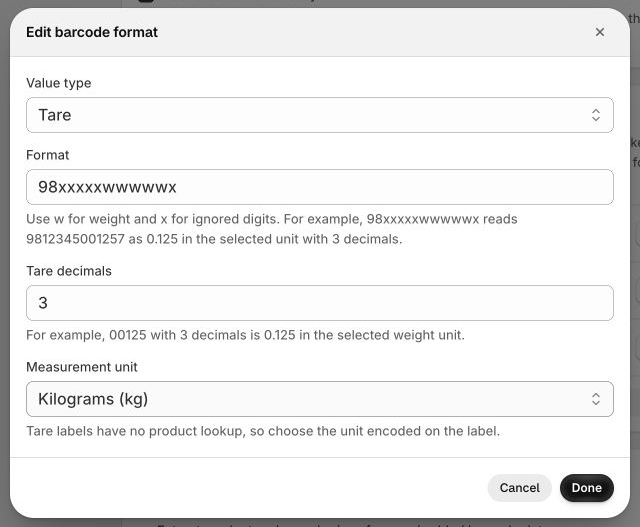
Tare formats use fixed digits, w, and x. They require at least one fixed digit and an explicit weight unit, because there is no product lookup from which to obtain a unit. Product-code, money, and check-digit tokens are not part of the Tare format type. The final x in this example excludes the trailing digit from the value; it does not validate a check digit in Measura’s tare parser.
Keep a distinctive fixed prefix so a tare label cannot be confused with a product label. Tare matching happens before product lookup. Preserve the exact scanned digits and length; this path does not repair a missing leading zero.
Apply tare before processing the gross weight
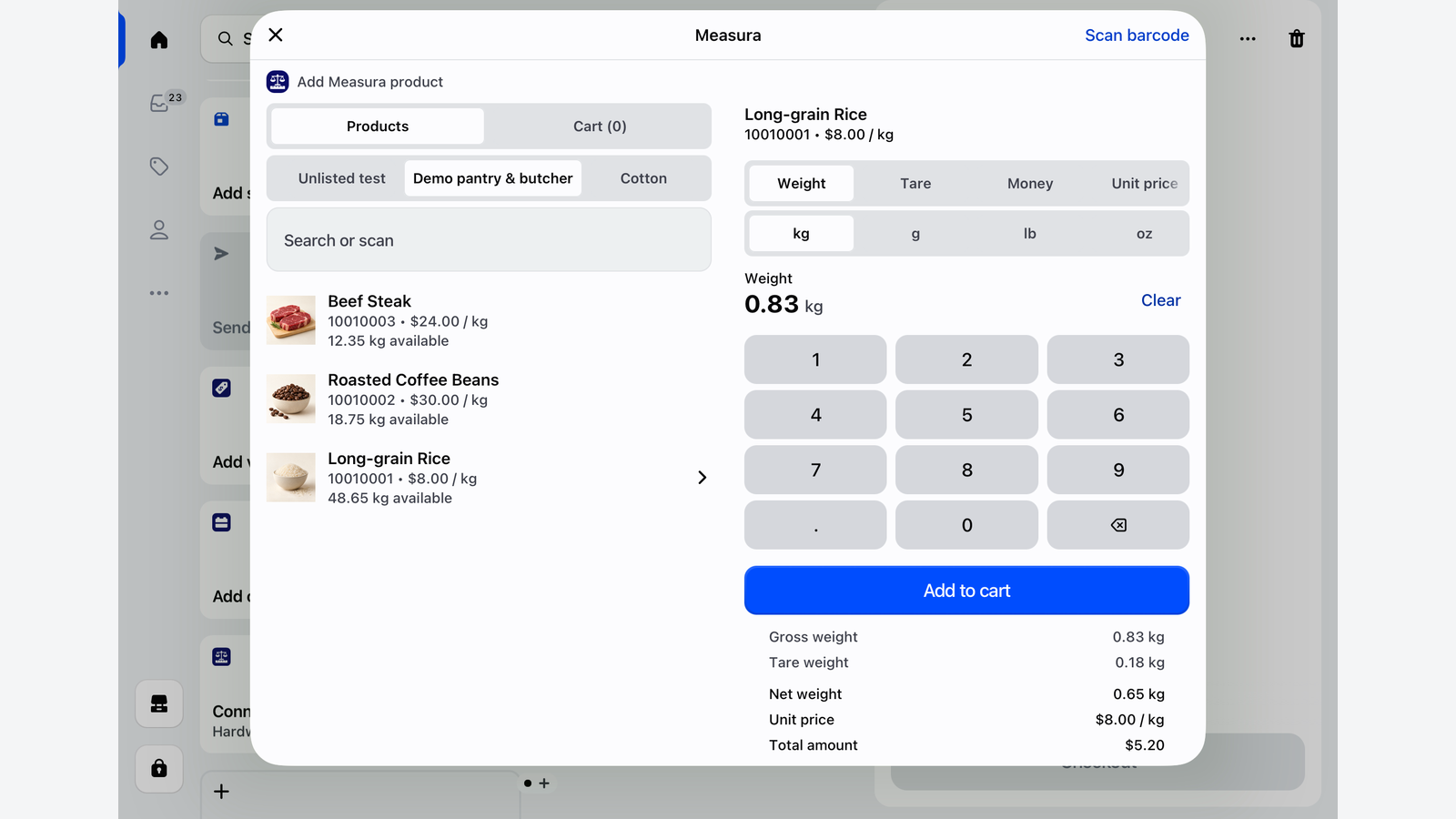
Close and reopen the Measura POS tile after updating formats. With Measura open for weight selling, scan the tare label, then select the intended beef product. Open the Tare tab and check the applied deduction.
For our tray, the deduction should be 0.03 kg. Open the Weight tab and enter 0.58 kg as the filled tray’s gross weight. The net product amount is:
0.58 kg gross − 0.03 kg tare = 0.55 kg of beef
At $24/kg, the item calculation is:
0.55 kg × $24/kg = $13.20
You can also read gross weight from a Measurement barcode. With a pending tare, Measura opens that result for review rather than adding it automatically. Check that the measurement label represents gross weight before applying the deduction. The weight-embedded barcode guide explains weight fields, units, and decimals.
Review the product, gross and tare values, net weight, and total before choosing Add to cart. Check the measured line in Shopify POS before checkout. These figures are worked amounts before tax, discounts, or other adjustments, rather than a recorded customer sale.
Avoid subtracting packaging twice
If a scale or label already reports net product weight, do not apply the same tray tare again. Subtracting 0.03 kg from an already-net 0.55 kg would incorrectly reduce the charged amount to 0.52 kg.
Use the gross-plus-tare workflow only when the entered or encoded measurement includes the packaging. The refill-shop guide explains the same distinction for customers’ jars and tubs.
Price-only and combined price-and-measurement labels retain their encoded price behavior. A tare scan is not a way to recalculate those package totals. Those scans do not consume the pending tare, so check or clear it before processing another weight item. Follow the price-embedded barcode guide when the label supplies the total to charge.
Choose between tare labels, presets, and manual entry
Use tare barcodes when your containers already carry a label encoding their empty weight. Use tare presets when staff should pick a named, saved container weight. Enter tare manually when the container is unfamiliar or needs to be weighed individually.
Check the actual container each time. A changed lid, tray size, or packaging can make an old label inaccurate. After adding an item through this gross-plus-tare workflow, tare resets for the next item; verify the next deduction rather than assuming the previous container still applies.
This workflow accounts for the product’s net weight. Handle any container sale, deposit, or packaging stock separately.
Troubleshoot a tare label that does not apply
If the Tare value type is missing, check that a weight product group is enabled. If a saved format does not apply in POS, verify that the add-on is active, reopen the tile, and compare the scanner’s exact value with the mask’s fixed digits and length.
If the deduction is wrong, check Tare decimals and Measurement unit. The digits 00030 with three decimals mean 0.030 in the selected unit; kilograms and grams are different amounts. Measura rejects a matched tare value that is not positive instead of treating it as a product scan.
For help, contact Atomic POS support with the sample label value, intended empty weight, selected unit, and saved format. The butcher-shop POS guide covers the full meat-counter workflow.