 Measura: Sell by Weight & More
How to scan weight-embedded barcodes in Shopify POS with Measura
Read a package’s encoded weight in Shopify POS with Measura. Configure product codes, kilogram decimals, barcode formats, and calculated prices.
Updated
Measura can read the weight encoded in a package barcode and calculate its selling price in Shopify POS. The Price embedded barcode add-on supports Measurement formats as well as price-bearing labels, despite its name.
This workflow suits pre-weighed packages whose labels identify both the product and its measured amount. We’ll use an EAN-13 worked example containing 0.55 kg of beef, priced at the product’s configured $24/kg rate for a $13.20 item amount.
Prepare the measured product and barcode add-on
Activate the Price embedded barcode add-on and configure your product for measured selling in Measura. This is a separately billed add-on; check its current requirements and your Measura plan’s POS location coverage.
Our Beef Steak variant has a base measurement of 1 kg and a product price of $24. Its SKU is 10010003, while the shorter code 10003 is saved in Shopify’s barcode field for label lookup. The decoded product code must match the intended variant’s SKU or barcode exactly.
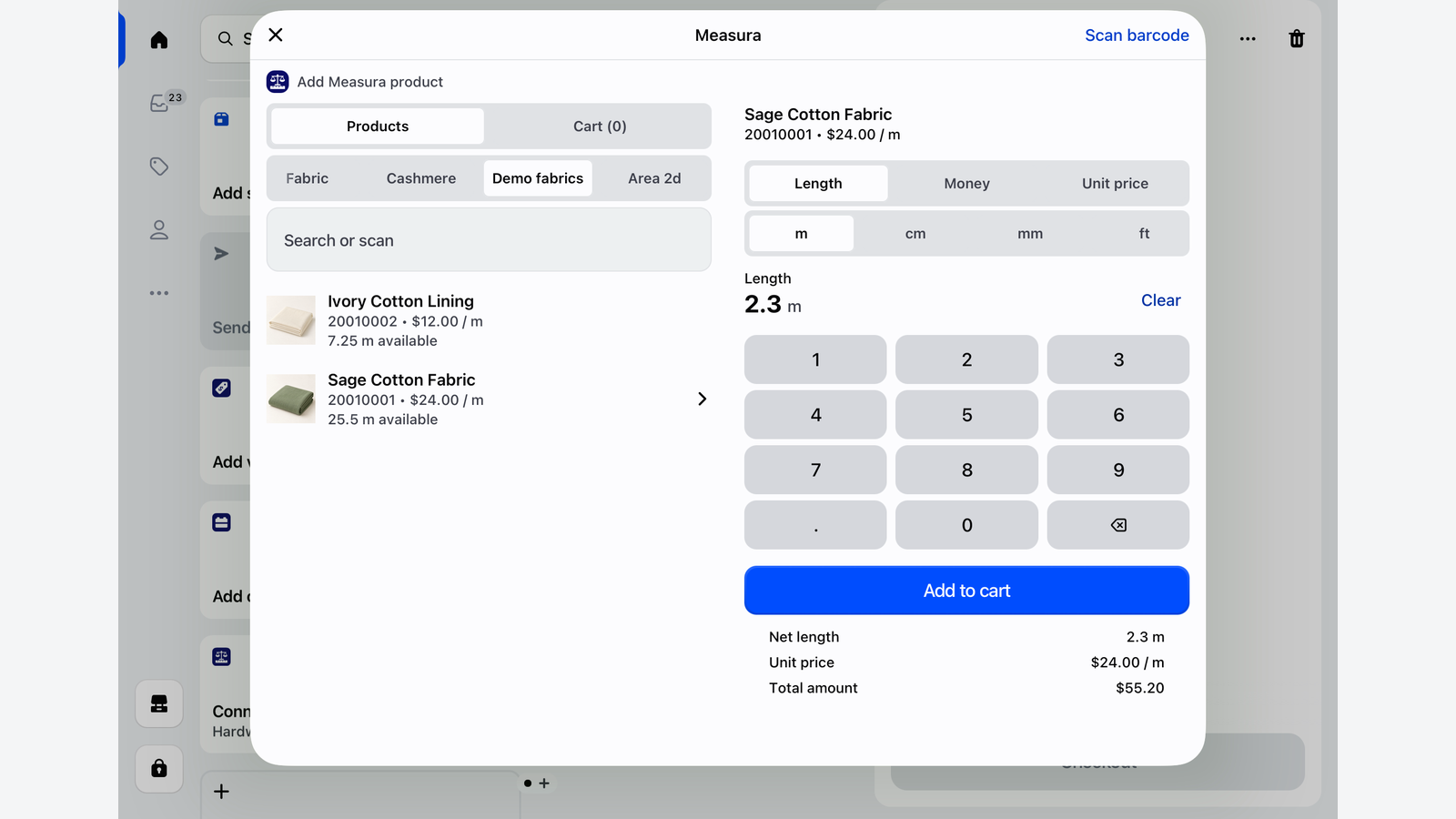
Add the Add Measura products tile to Shopify POS; its configured title may appear as Add Measura product. The POS setup guide covers the tile and measured product configuration.
Read the weight fields in the label
For this example, the full barcode value is:
2110003005501
Its fields are:
- 21: the fixed prefix used by our example.
- 10003: the product lookup code.
- 00550: the weight digits.
- 1: the EAN-13 check digit.
With three measurement decimals and kilograms selected, 00550 means 0.550 kg, or 550 g. The barcode carries the weight; it does not carry the selling price in this example.
Start from your actual scale or label printer’s layout. EAN-13 describes the barcode’s structure, but a particular prefix and field layout are not universal across stores or regions. Confirm the exact value sent by the scanner, including leading zeros and the check digit.
Save a Measurement format in Measura
Open Measura → Add-ons → Price embedded barcode in Shopify Admin. Under Custom barcode formats, choose Add format or Add another format, then enter:
- Value type: Measurement.
- Format:
21pppppwwwwwc. - Measurement decimals: 3.
- Measurement unit: Kilograms (Kg).
The five p characters read product code 10003. The five w characters read 00550. The final c validates the EAN-13 check digit. Choose Done, then Save the page’s settings.
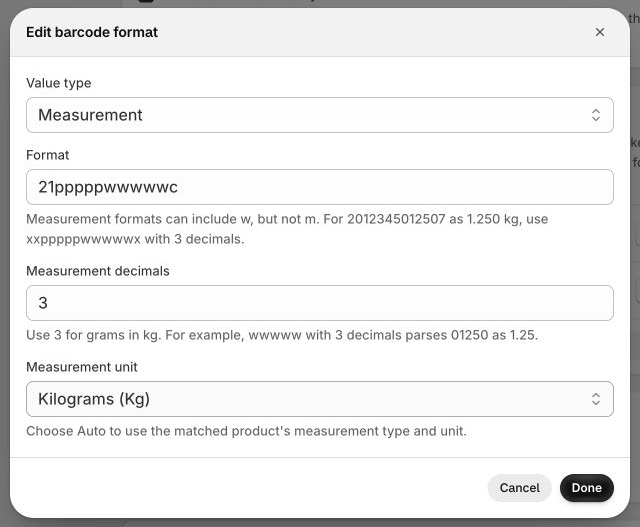
Choose the unit actually encoded on the label. Three decimals in kilograms can represent grams; selecting grams instead would give a different amount. Auto uses the matched product’s configured measurement unit, so use it only when that unit matches the label’s meaning.
Replace 21 with your labels’ fixed prefix. xxpppppwwwwwc ignores the first two characters, but it also broadens what can match. Keep a fixed prefix when it distinguishes weight labels from other labels your staff scan. Save other formats alongside this one rather than replacing formats needed elsewhere in the shop.
Scan and review the calculated price
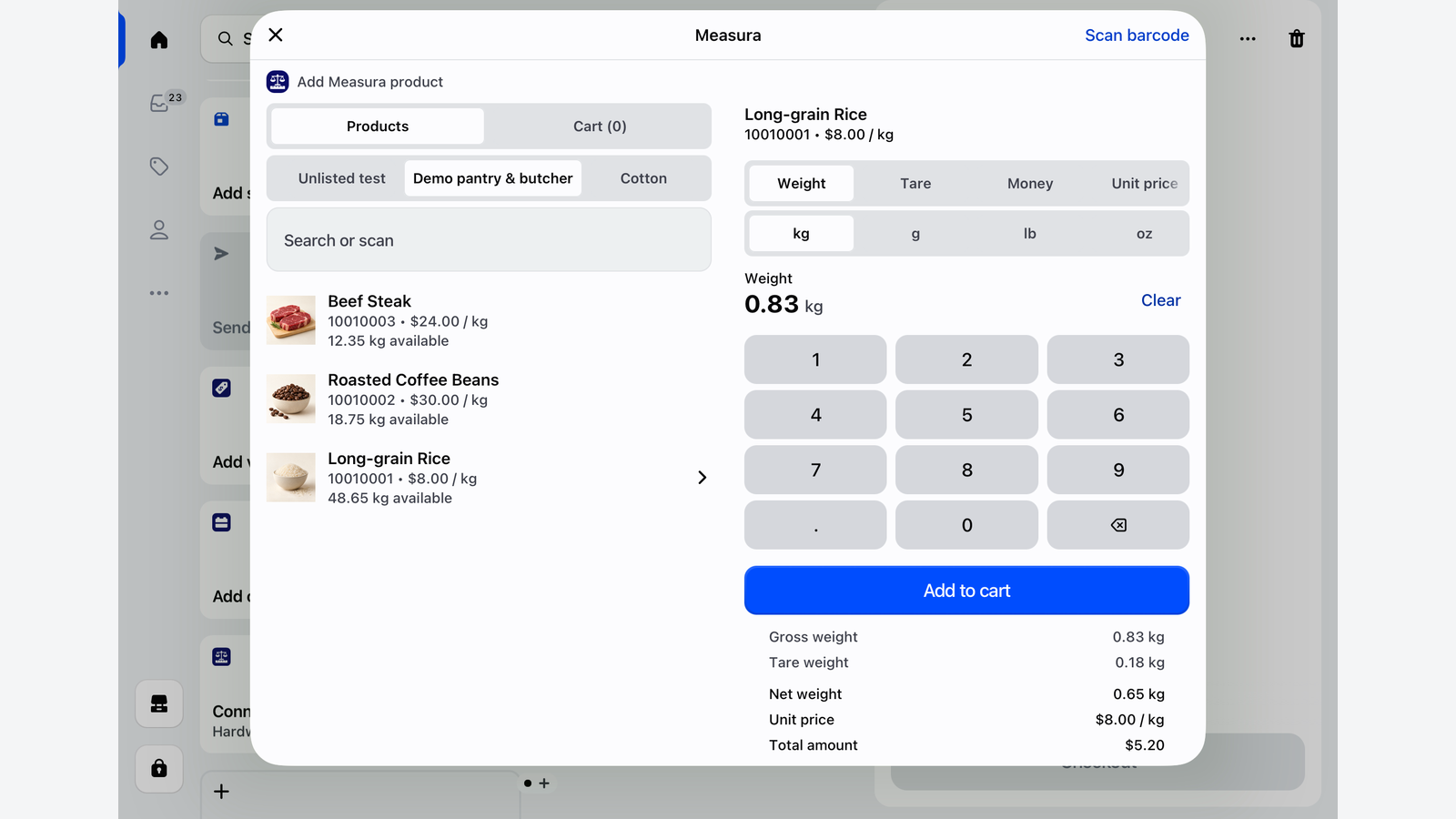
Close and reopen the Measura POS tile after updating formats, then scan the label using your supported scanner or Scan barcode. Measura matches the product code and reads the encoded measurement.
For our beef example:
0.55 kg × $24/kg = $13.20
The add-on’s Add to cart automatically setting controls whether an eligible result adds directly to the cart or opens the product editor for confirmation. Several matching variants require staff to choose the intended one. Review the product, unit, weight, and calculated price before checkout.
This is a worked calculation supported by the format shown, not a recorded customer transaction. Taxes, discounts, and other checkout adjustments can affect the final amount due. Verify the receipt and stock result with a representative test sale before using the workflow across your counter.
Keep weight labels distinct from price labels
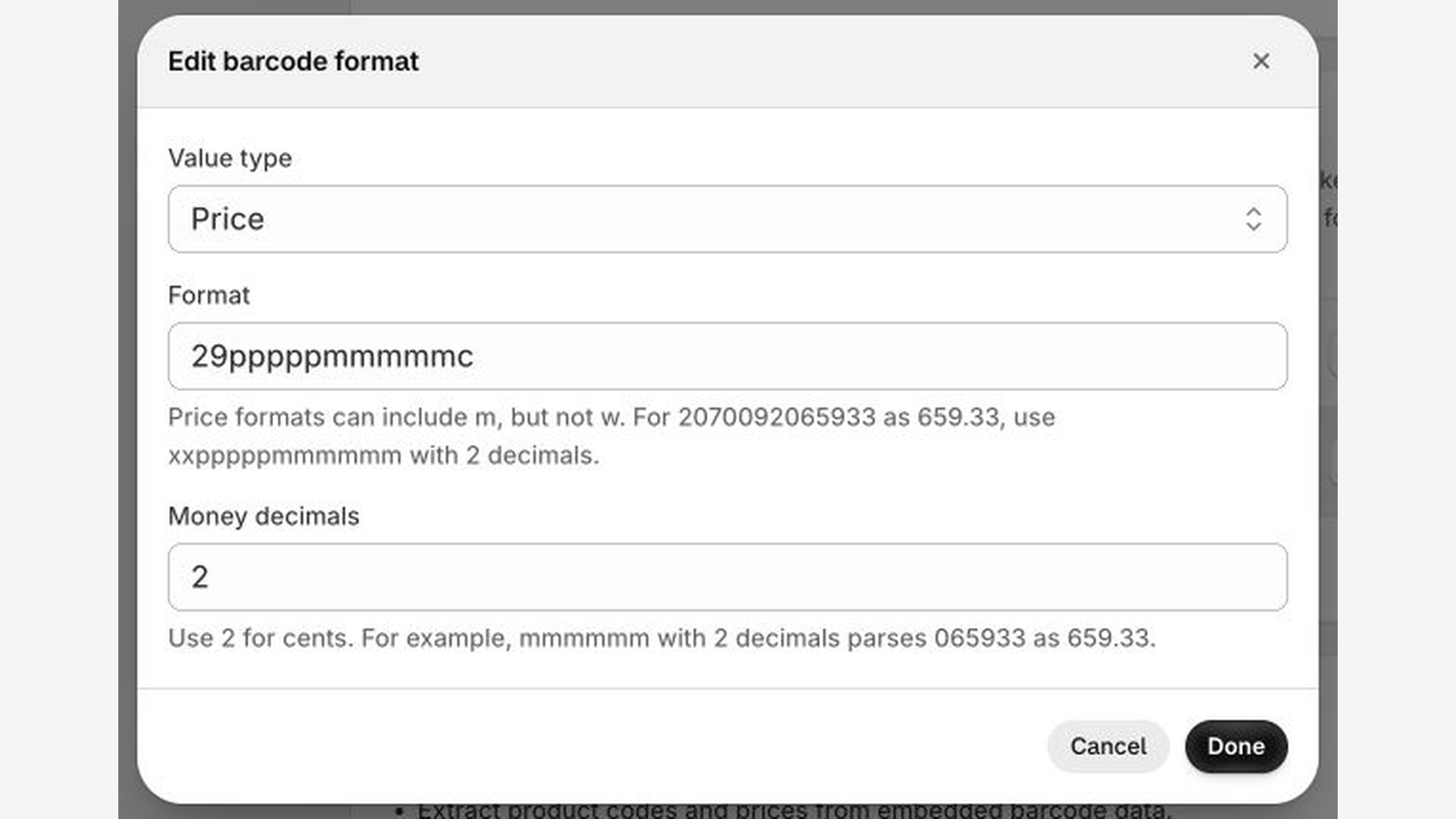
A weight-only label supplies 0.55 kg, and Measura prices it using the matched product’s configured rate. If that rate becomes $26/kg, the same weight gives a $14.30 item calculation before other adjustments.
A price-only label instead supplies the package total, and Measura derives a measurement from that total and the configured unit price. Follow the price-embedded barcode guide for that workflow.
If a label includes both weight and total price, select Price and measurement and map both w and m fields, with their separate decimal settings. For example, a label supplying 0.55 kg and $13.20 carries both values directly. It does not need the weight to be derived from the total. Match its actual layout rather than reusing our weight-only mask.
Check whether the label’s weight includes packaging
If the label already encodes net product weight, do not subtract the same container again. Our 0.55 kg example assumes the encoded value is the product weight.
For a label containing gross weight, apply the correct tare and review the net result in Measura. For example, 0.58 kg including a 0.03 kg tray leaves 0.55 kg of beef. A pending tare makes a weight-label result open for review rather than adding automatically.
The tare-presets guide explains selecting saved container weights. Tare barcode formats in the same add-on can also supply the empty-container weight before the product’s measurement is processed.
Follow the tare-barcode guide to configure an empty-container label and check the deduction before processing gross weight.
Troubleshoot weight or product mismatches
If the weight is wrong, check the unit and decimal setting first. With this example’s digits, three decimals produce 0.550 kg; two produce 5.50 kg. Check the positions of the product, weight, and final check digit against the real scanner output.
If the product is missing, compare the extracted code with its exact SKU or barcode, then check measured-product assignment, add-on status, and availability at the POS location. Preserve leading zeros in identifiers and avoid duplicate codes for unrelated variants.
If you need help, contact Atomic POS support with a sample barcode value, expected product and weight, and your saved format. For the wider meat-counter workflow, read the Shopify POS guide for butcher shops.