 Measura: Sell by Weight & More
How to save and use tare presets in Shopify POS with Measura
Save reusable container weights in Measura, choose a tare preset in Shopify POS, and charge for net product weight without retyping the same tare each time.
Updated
Measura lets you save reusable empty-container weights and select them as tare presets in Shopify POS. Staff choose the matching jar, tub, or tray instead of typing its tare weight again, then review the net product weight and calculated price.
This is useful when your shop regularly uses the same packaging. A named preset makes a known weight easier to reuse; staff still need to check that it matches the actual empty container, including any lid or other packaging weighed with the product.
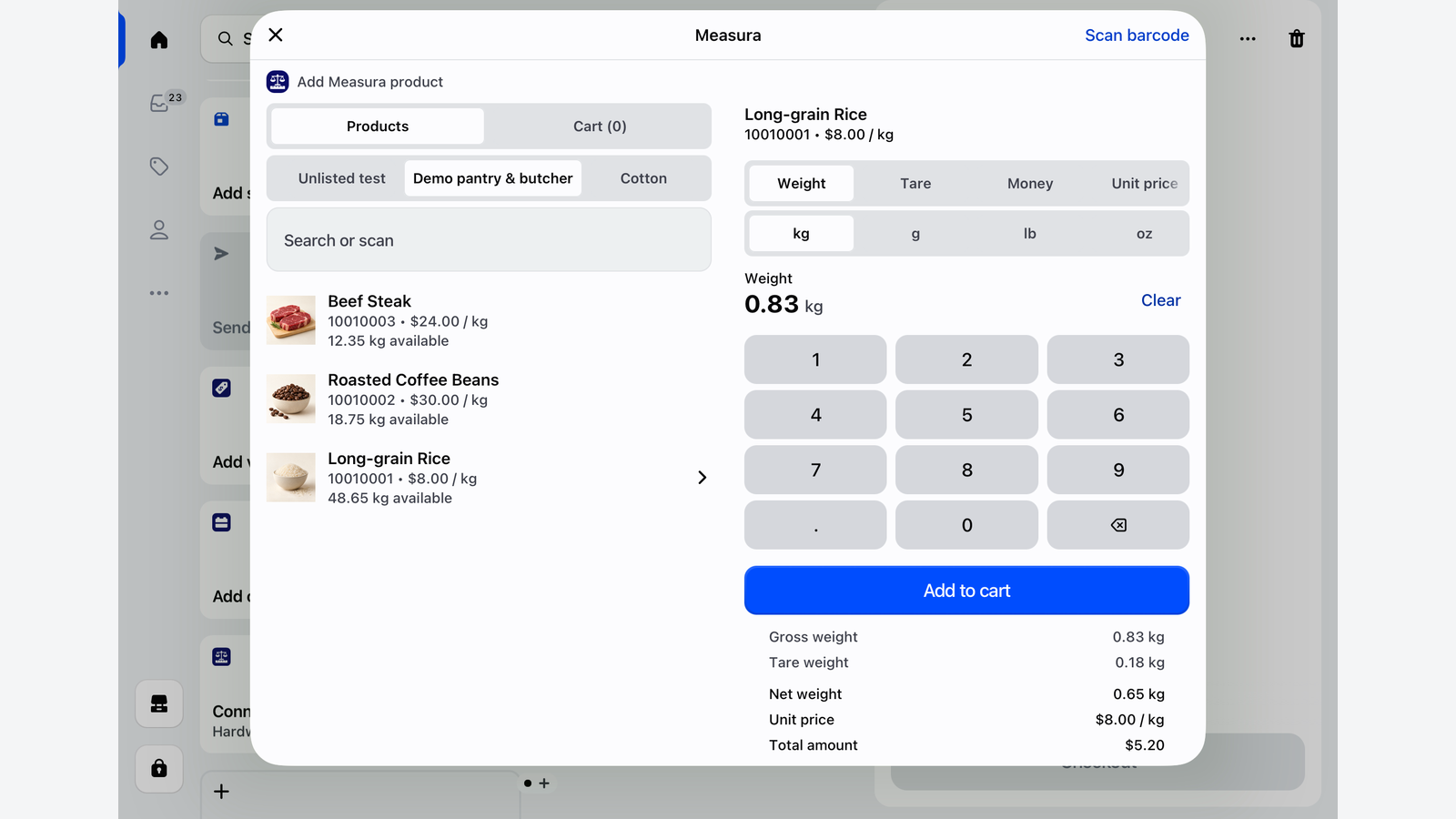
This guide uses a Glass jar with lid preset weighing 180 g and rice priced at $8/kg. The screenshots show the demo setup and calculator; the example does not represent a completed customer sale.
Before you start
Tare presets are included on Measura Pro, Premium, and Enterprise. They do not require a separate add-on. Check Measura’s current plans for your store’s requirements. Manual tare entry remains available independently of preset access.
Enable Point of Sale (POS) in Measura’s sales-channel settings and configure a weight-based product. Add the Add Measura products tile to your Shopify POS smart grid; its configured title may appear as Add Measura product. The POS setup guide covers measured products, pricing, and the tile.
Presets are shared across the shop. Staff do not need to select a customer to use them. Create and manage presets in Shopify Admin; the POS picker lets staff select an existing preset during a sale.
If your containers carry labels encoding their empty weight, the separate tare-barcode workflow can apply that weight through the Price embedded barcode add-on. This guide covers choosing named presets from the saved list.
Save an empty-container weight
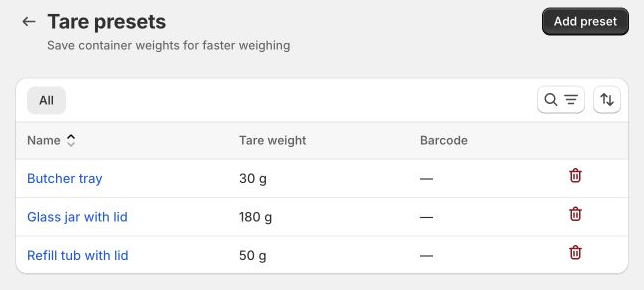
In Shopify Admin, open Measura → Settings → Tare presets, then choose Add preset.
Enter a descriptive name, the empty container’s weight, and its unit. Measura supports grams, kilograms, ounces, and pounds for presets. For our jar, enter:
- Name: Glass jar with lid.
- Empty container weight (tare): 180.
- Weight unit: g.
Save the preset. An optional barcode identifier can be left blank for this list-selection workflow.
Use names that help staff distinguish the actual packaging. “Glass jar with lid” is more useful than “Container 1.” If you stock different sizes or lids with different weights, save separate presets and make those differences clear in their names.
A preset should come from weighing the empty packaging. A jar’s capacity, such as 500 ml, is not its tare weight. For customers’ own containers, weigh each actual container unless you already have a verified matching preset. Similar-looking jars can have different weights.
Choose the preset in Shopify POS
After saving your first preset, close and reopen the Measura POS tile to refresh its availability.
Select the rice product, open the Tare tab, and choose Choose container. Search the saved list if needed, then select Glass jar with lid.
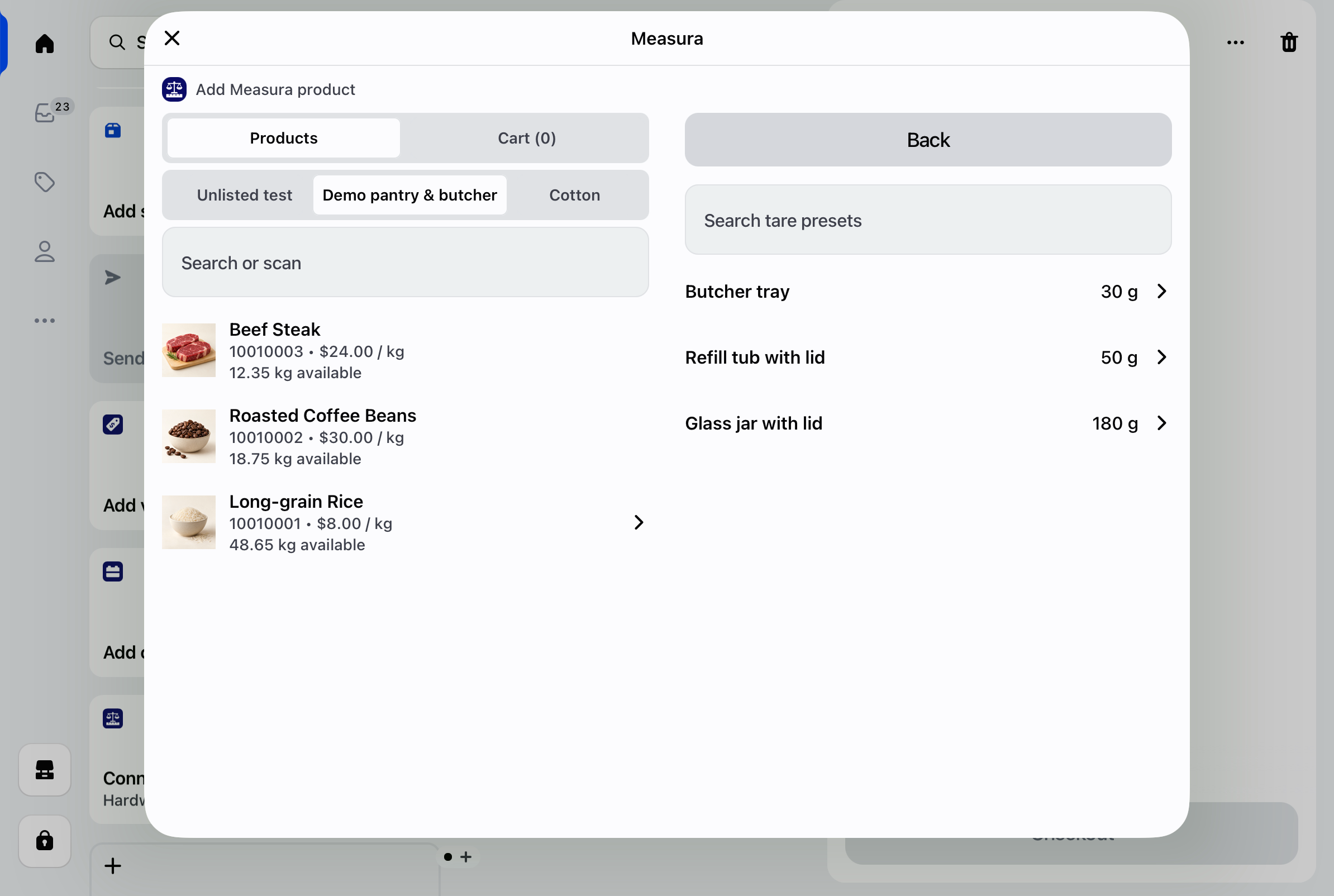
Measura applies the selected preset’s tare and returns to the Tare tab. Check its name, weight, and unit before continuing. In this example, 180 g is the same physical weight as 0.18 kg; the gross and tare measurements can be expressed in different supported weight units.
Review the net weight and price
Open the Weight tab and enter the filled jar’s gross weight. Suppose the rice and jar weigh 0.83 kg together. With the 180 g jar preset selected, the calculation is:
0.83 kg gross − 0.18 kg tare = 0.65 kg of rice
At $8/kg, the item amount is:
0.65 kg × $8/kg = $5.20
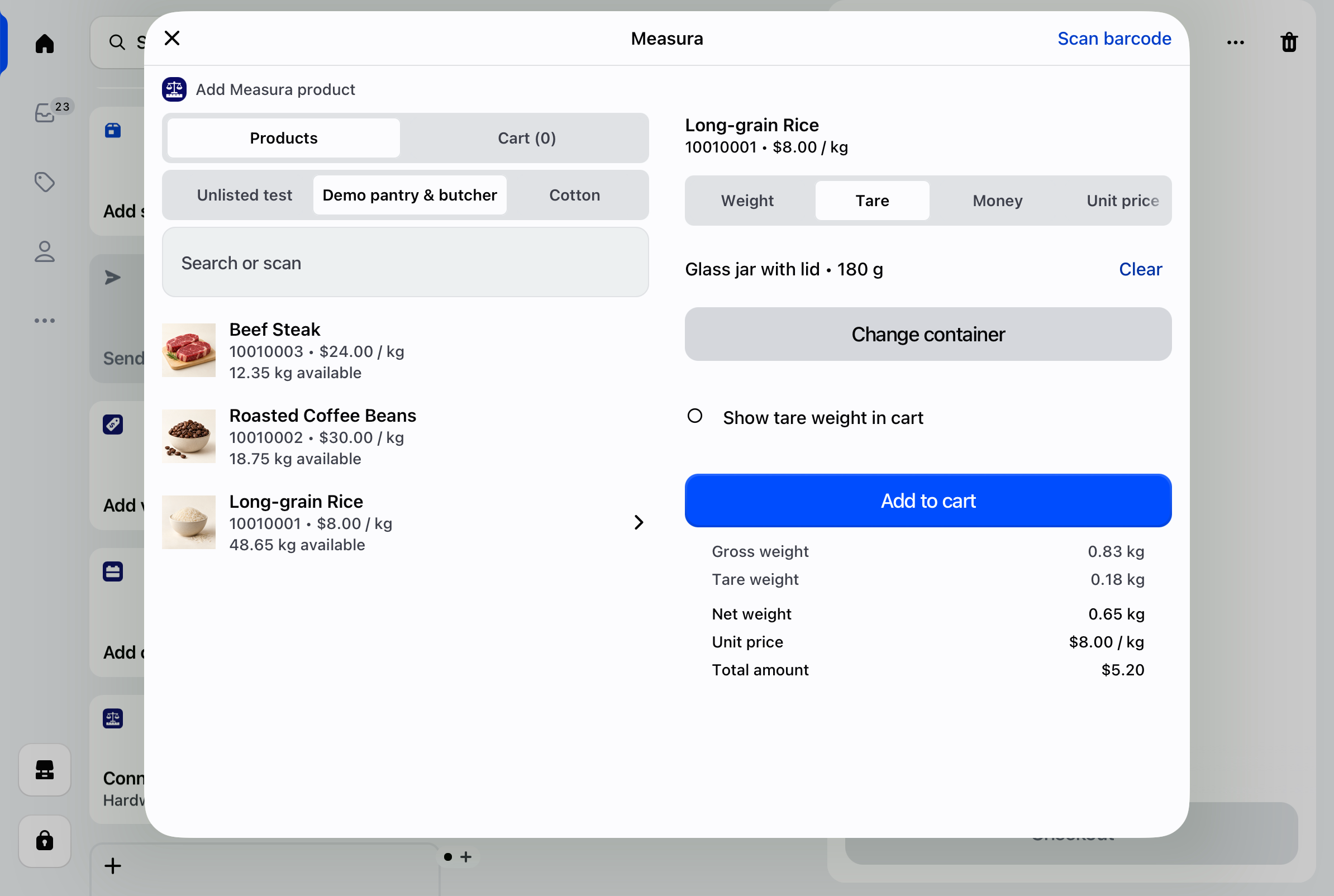
Review the summary, then choose Add to cart and check the measured line in Shopify POS before checkout. Prices here are illustrative amounts in the store’s currency, before tax, discounts, or other adjustments.
If your scale has already subtracted the jar and displays net product weight, enter that net value with no further tare deduction in Measura. Applying the jar preset again would subtract the packaging twice. The refill-shop tare guide explains both weighing workflows.
Change or clear a selected container
In the Tare tab, choose Change container to select a different preset. Choose Clear beside the selected container to remove its selection and reset the tare deduction. You can then enter a one-off tare manually.
Check the container for every item. The correct tare for a jar is not necessarily correct for a tub or meat tray. Only the product’s net weight should be charged and, with inventory management configured on an eligible plan, deducted from measured product stock after the sale is processed.
The preset itself does not add a container product to the cart or track packaging inventory, deposits, or loans. If you sell a jar or charge a deposit, handle that separately from the product’s tare calculation.
Maintain your presets and help staff find them
Return to Measura → Settings → Tare presets to search, edit, or delete saved entries. Recheck a preset when your packaging changes. Staff should verify the applied tare on the current item rather than expecting an Admin edit to rewrite a calculation already in progress.
If Choose container is missing, check that your plan includes presets, POS is enabled, and at least one shared preset has been saved. Close and reopen the tile after the initial setup so it can refresh. Manual tare is a useful fallback while you check configuration; contact support if the picker still does not appear.
For packaging at a meat counter, see the butcher-shop POS guide. For stock balances and locations, see the fractional inventory guide.
Explore Measura or follow the Shopify POS setup guide to prepare your first measured product.