 Measura: Sell by Weight & More
How to sell by weight in Shopify POS with Measura
Set up measured products, enter weights and tare, and add accurately priced items to your Shopify POS cart with Measura.
Updated
Measura lets you sell products by weight directly in Shopify POS. Staff choose a product, enter its measured weight, and add it to the cart with the price calculated from the product’s unit price. You can use Measura for in-person selling, online selling, or both. An online store is not required for the POS workflow.
This guide walks through a weighed sale, from setting up the product to checking the cart. We’ll use a simple coffee example, then explain how tare weight, inventory, and receipts fit into the process.
See the POS workflow
The recording below comes from Measura’s in-app setup guide. It shows a weighed product being selected, its weight entered, and the resulting line added to the Shopify POS cart.
Here is the same workflow in words: open the Add Measura products tile, select a product, enter the measured quantity, review the calculated amount, and choose Add to cart. Check the new line in the Shopify POS cart before completing the sale.
Before you start
You’ll need a Shopify store using Shopify POS, Measura installed, and a plan that covers the POS locations where you want to sell. You’ll also need a product to configure and a scale to measure its weight. Manual entry does not require a connected scale integration.
Start from the Measura Shopify App Store listing, or review Measura’s features and plans. Check the current subscription details before approving installation. Optional add-ons have separate requirements and billing.
1. Configure your measured product
Open Measura in Shopify Admin and follow the setup guide. Choose POS as a sales channel if you only want in-person selling, or enable both channels if you also sell online.
Assign your product to a weight-based product group and choose its base measurement. Make sure the product price and base measurement describe the same amount. For our example:
- Product: coffee beans.
- Base measurement: 1 kilogram.
- Product price: $30 for that kilogram.
That configuration means the unit price is $30/kg. The dollar amounts in this guide are examples in the store’s currency, before any applicable tax, discounts, or other cart adjustments.
If you configure a product around a different base amount, such as 100 grams, check the price for that amount rather than treating it as a price per kilogram. Getting that relationship right is more important than which unit you choose.
2. Add Measura to your POS smart grid
In Shopify POS, add the Add Measura products tile to your smart grid (its configured title may appear as Add Measura product). Measura’s setup guide includes a POS smart grid setup demonstration if you need help finding it.
Keep the tile where staff can reach it during a sale. Open it and select the configured coffee product. If you can’t find the product, check its Measura product assignment and availability at the POS location you’re using.
For pre-weighed packages with a price printed in the barcode, use the price-embedded barcode guide. That workflow requires the separate add-on and a format matching your labels.
3. Enter the weight and review the price
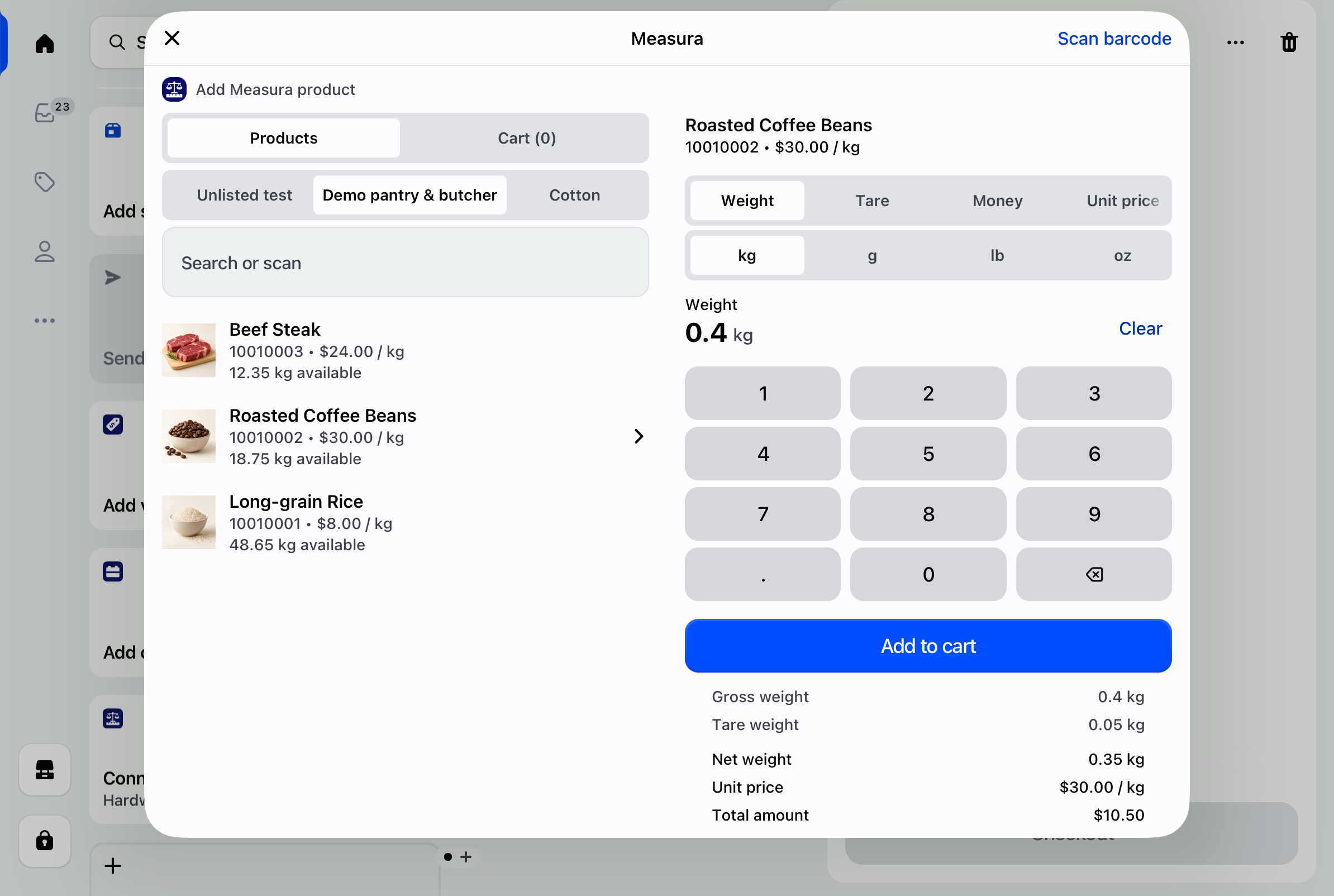
Weigh the coffee, then enter 0.35 kg into Measura. Check the selected unit as well as the number: 0.35 kg is 350 g, not 0.35 g.
For the example product, the calculation is:
0.35 kg × $30/kg = $10.50
Measura calculates the amount from the entered measurement and unit price. Review the net measurement and total before adding the item. You don’t need to work out a separate selling price with a calculator for every weighed item.
Selling with a container? Enter its tare weight
Tare is the weight of the empty container. When you weigh a product inside a container, the gross weight includes both. For weight entry, Measura subtracts the tare to calculate the net product weight.
For example, if the coffee and container weigh 0.40 kg together and the empty container weighs 0.05 kg, the net coffee weight is 0.35 kg. At $30/kg, the example price is still $10.50.
Use the tare action in the measurement form and check that the tare unit matches your intended measurement. Review the summary before adding the item. Tare applies to the weight-entry workflow; entering a target money amount is a different calculation.
For a bring-your-own-container workflow, read our refill-shop guide to container tare in Shopify POS. It covers weighing empty jars, avoiding double tare subtraction, and checking the stock result.
4. Add the item to the Shopify POS cart
Choose Add to cart. Measura adds the measured product with its calculated price, and you can continue the sale in Shopify POS.
Check the product, measurement details, and amount in the cart. For our coffee example, the expected item amount is $10.50 before any applicable cart adjustments. The recorded demo above shows the resulting cart line for its blueberry example.
If staff need to correct measured items from the cart, follow Measura’s setup instructions to enable Measura edit item in the Shopify POS sales channel’s POS app settings. This cart action needs to be added separately; placing the main tile on the smart grid does not enable every POS action automatically.
5. Check inventory and receipts before going live
Run a small test sale before your first busy shift. A useful test checks the complete journey: measured entry, cart, checkout, stock, and the receipt your customer receives.
Inventory
Measura’s inventory adjustment and fractional stock tracking features depend on your plan and configuration. If you need to track a remaining balance such as 9.65 kg after selling 0.35 kg from 10 kg, select a plan that includes the required inventory features and configure the product and location accordingly.
Review the current plan comparison, then verify the stock result after a completed test order. If you sell the same product online and in person, test both sales channels against the intended inventory location.
Receipts
Check how the product, unit price, measured amount, and total appear on the receipts you actually use. Follow the receipt setup steps inside Measura, including any template changes required for your workflow. Email and printed receipts can use different rendering paths, so test each relevant format.
If a receipt shows technical properties or omits a measurement you expected, contact Atomic POS support with the receipt type and a redacted example.
Common questions
Can I use Measura only in Shopify POS?
Yes. You can configure Measura for POS without setting up the online-store measurement selector. The app’s setup guide adapts to the sales channels you choose.
Does Measura also sell by length, area, volume, or time?
Yes. Measura supports those measurement types as well as weight. Choose the type and units appropriate to your products. This guide focuses on weight entry; the fields for other measurement types differ.
Do I need a connected scale?
No connected scale is required to type a measured weight into Measura. Measure with your scale and enter the result. Automatic scale readings are a separate workflow with compatible hardware and the ScaleBridge device app; review the Scale integration add-on for its current availability and requirements.
Which plan do I need?
Choose a plan that covers your POS locations and the features you need. Inventory management, purchase rules, and optional add-ons should be checked individually. The Measura plan comparison and subscription details shown during installation are the places to check current terms.
Start selling by weight in person
Configure one product, make one test sale, and check the result from cart to receipt. Once that workflow is right, use the same setup approach for your other weighed products.
Explore Measura for features and setup information, or install Measura on Shopify to get started. If your products or checkout process need a different configuration, contact us with the workflow you want to support.
For a detailed explanation of decimal stock, base measurements, and locations, read how fractional inventory works in Shopify with Measura.